
Supported file formats
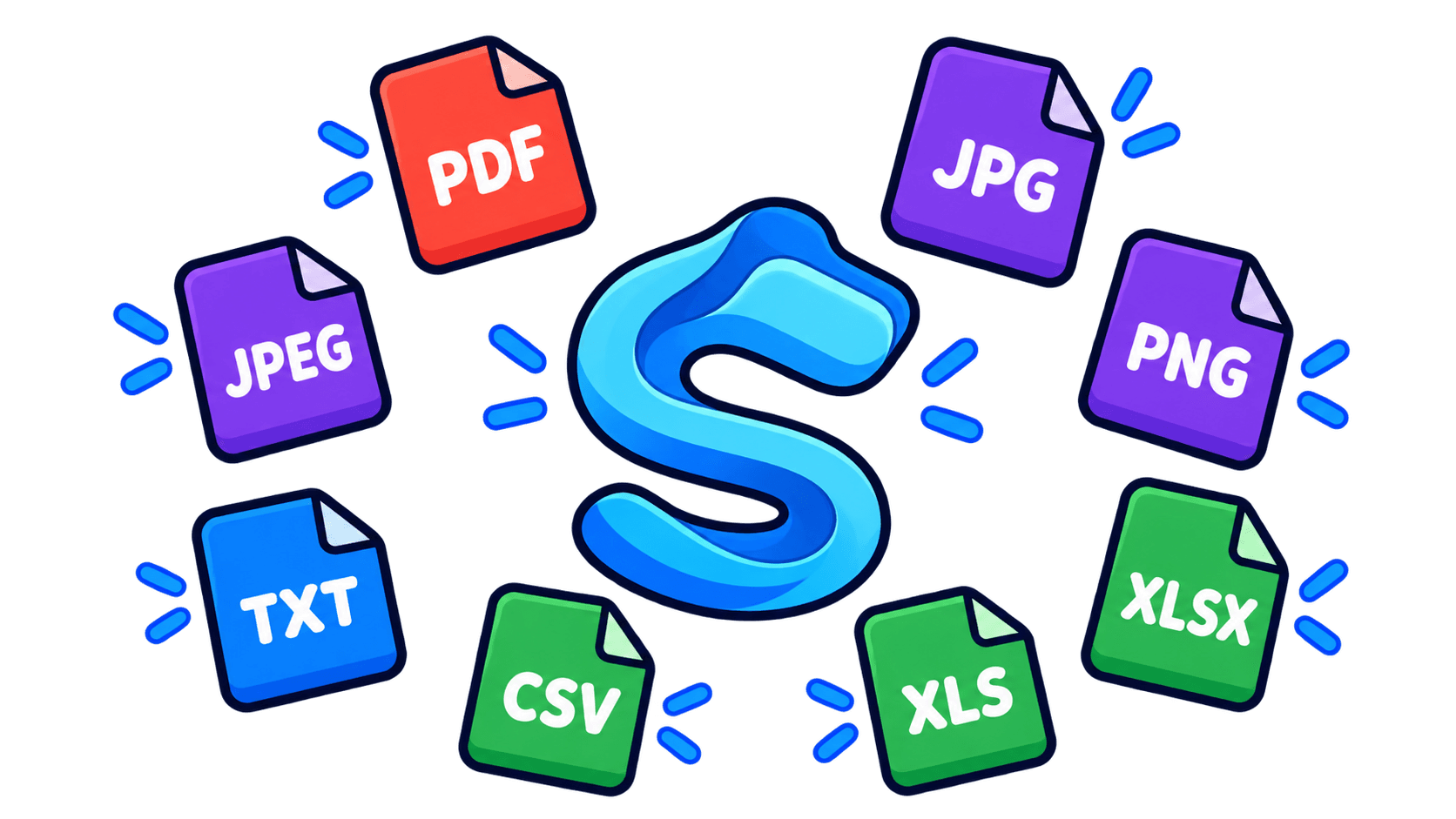
Bring invoices, receipts, contracts and spreadsheets into one workflow. Sortify supports the following file types:
| Document type | Formats |
|---|---|
| Documents and scans | |
| Images and photographed receipts | JPG, JPEG, PNG |
| Text files | TXT |
| Spreadsheets | CSV, XLS, XLSX |
Before you upload
Set up your workspace first so Sortify knows where your documents should go.
- Choose AI Sortify Cloud or connect Google Drive in Storage.
- Choose a folder structure and adapt it to your work.
- Check your plan’s file-size limit, upload batch size and remaining classifications.
Upload your first documents
Start with a few files to get familiar with the workflow.
- Open Upload Files in your workspace.
- Select the documents you want to process.
- Check the filenames and remove anything selected by mistake.
- Choose a destination or automatic classification, then start processing.
Choose a destination
Let Sortify suggest a destination using your document and folder structure. If you already know where a file belongs, choose that folder during upload.
- Automatic classification: useful for a mixed selection of documents.
- Selected folder: useful when you already know the destination.
Folder rules and naming settings influence the suggestions. Learn about folder structures →
Review the result
On the example invoice:
Northstar Office · 21 Sep 2026 · €109.48
After processing, open the document and compare the extracted information with the original.
- Is the suggested folder appropriate?
- Is the filename clear and useful?
- Are the date, supplier and other extracted details correct?
Done means processing has finished. Correct details where needed and confirm documents that require review.
Example: a supplier invoice
Alex uploads an invoice named scan_0042.pdf. Sortify identifies Northstar Office and the invoice date, names the file, and places it in his expenses structure.
Limits and troubleshooting
Limits
File too largeCheck your plan limit or optimize the file
Check the per-file size limit shown in the uploader. Remove the oversized file or use optimization when available. Check that the optimized document remains readable before uploading it.
Too many files in one uploadUpload smaller batches
The number of files allowed per upload depends on your plan. Remove some files from the selection and upload them in another batch. The uploader shows your current batch limit.
No classifications remainingCheck usage and plan allowance
Check the remaining classifications shown in the uploader or Usage & Billing. When your allowance is exhausted, wait until credits are available again or choose a plan with more classifications.
File issues
Unsupported or empty fileUse a supported, complete copy
Use one of the supported formats listed above. A zero-byte file or a file without a readable size cannot be processed. Export a complete copy and select it again.
Damaged PDF or invalid imageOpen it locally, then export a fresh copy
A damaged PDF or an image whose contents do not match its file type may be rejected. Open the file on your device to check readability. If it fails, scan or export the original again.
Password-protected PDFUpload an unlocked copy
Sortify cannot read a PDF that requires a password. Open it with the password in your PDF app, save an unlocked copy that you are permitted to use, and upload that copy.
Duplicate detectedCheck the existing document first
The uploader can detect matching content and let you continue with only new files or include duplicates. Inspect the existing document before deciding; uploading the duplicate again can use another classification.
Connection and processing
Storage access missingReconnect Drive or choose an accessible folder
If Google Drive is disconnected or the destination folder is inaccessible, reconnect Drive or choose a folder you can access. An organization owner may need to restore the connection. AI Sortify Cloud does not require Drive.
Processing or moving failedRead the file’s error before retrying
Open the affected file’s result and resolve the specific error first. Retry only failed files where the action is offered. Before uploading again, check whether the file already appears in Documents or the destination folder.
Next steps
Adapt the organization to your daily work, or read the complete upload guide.